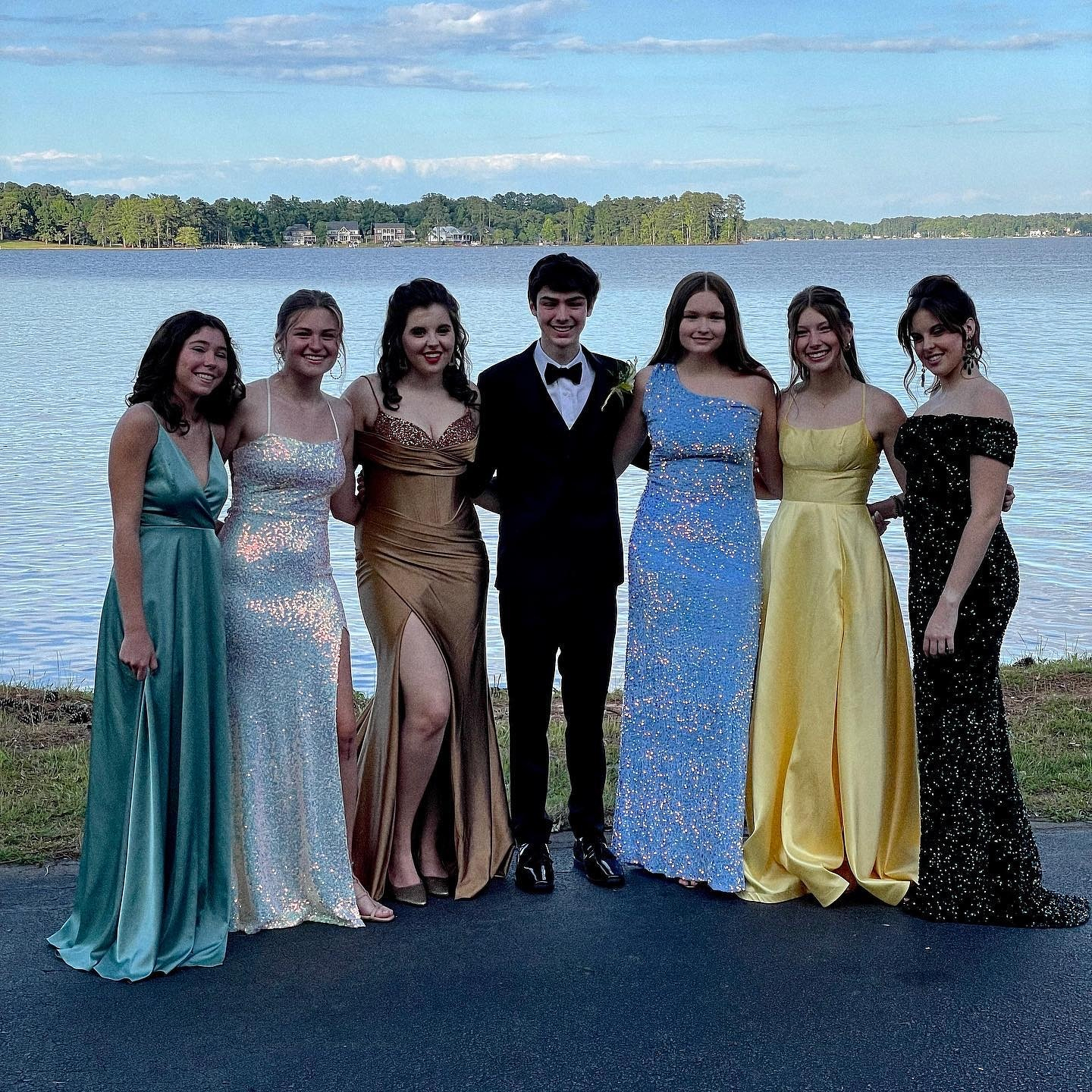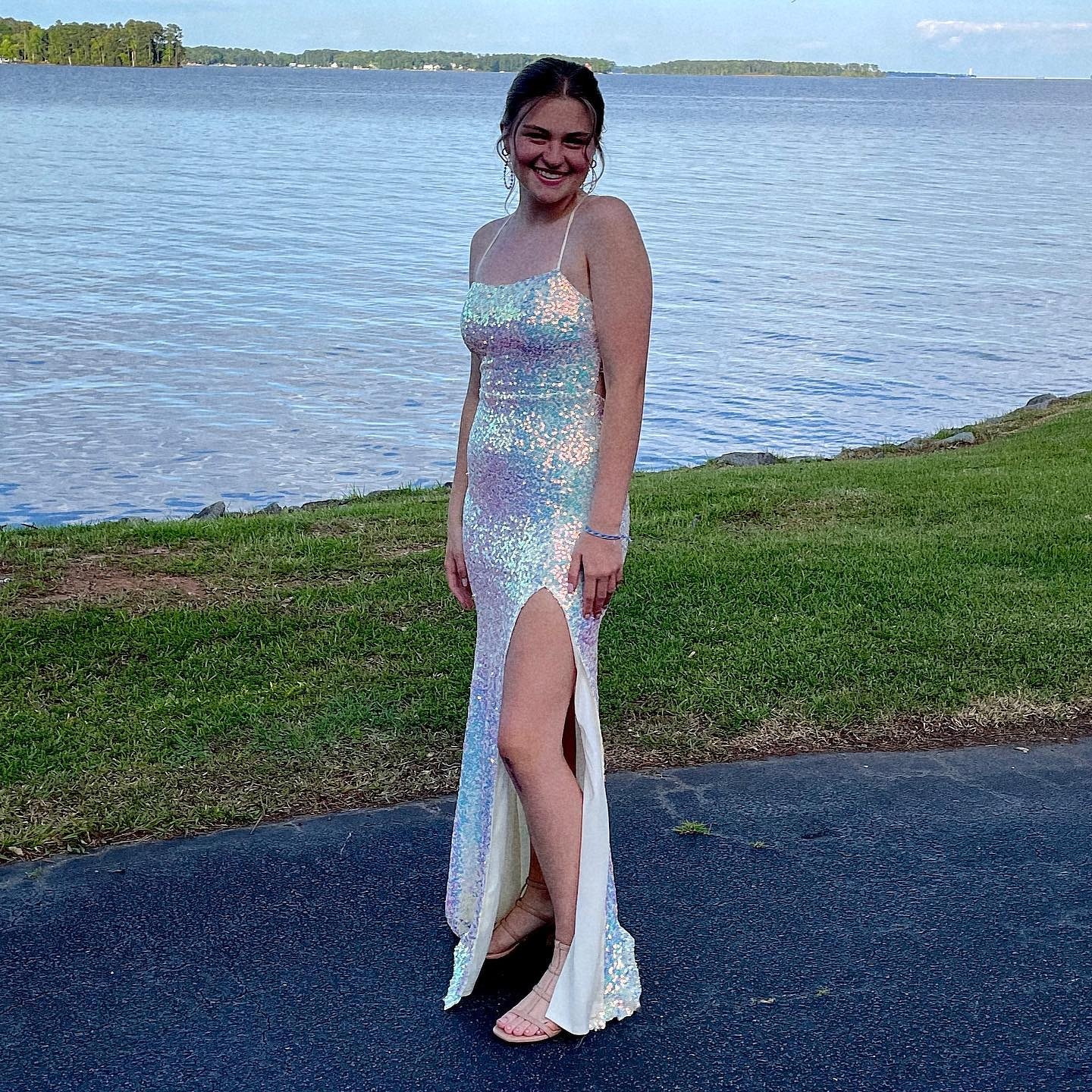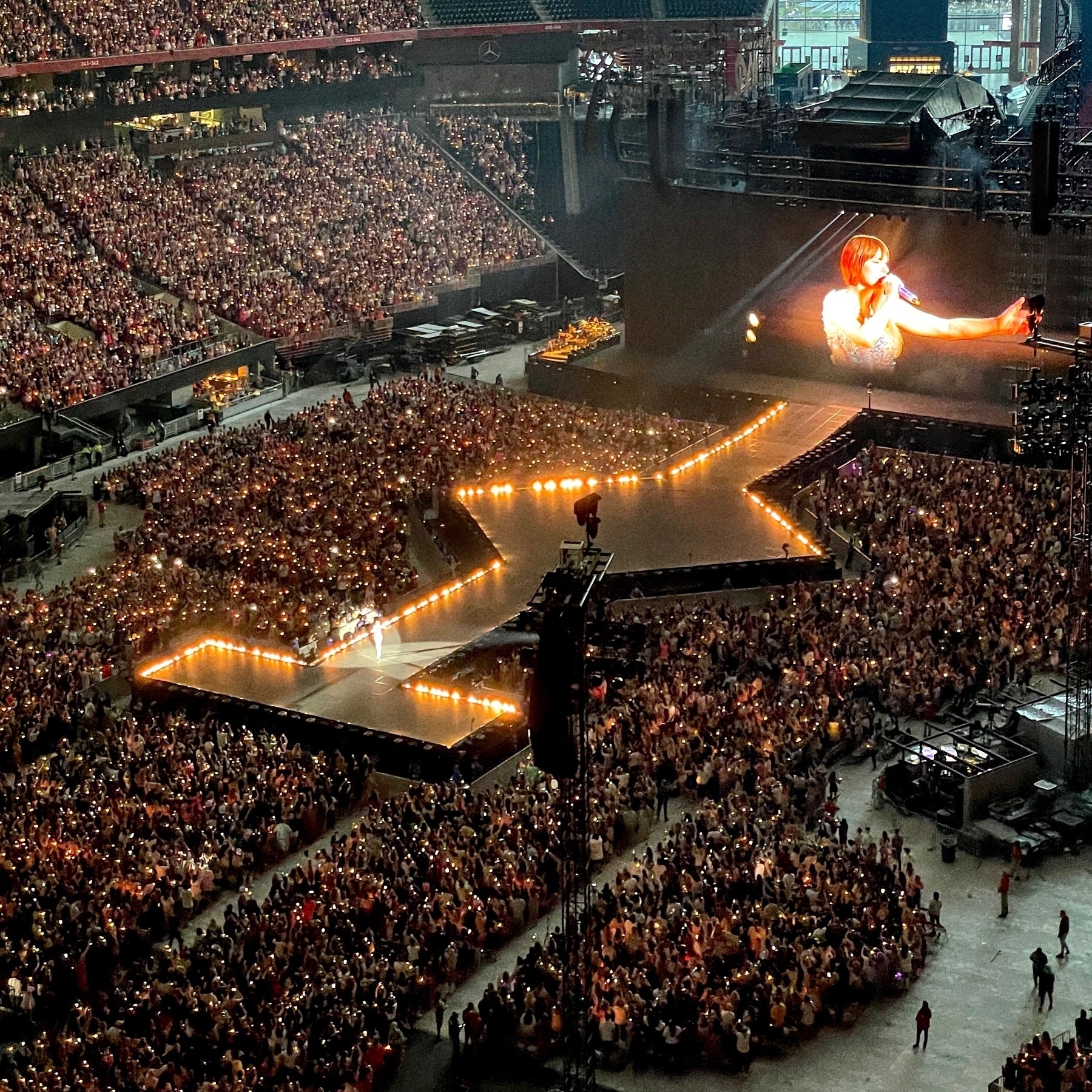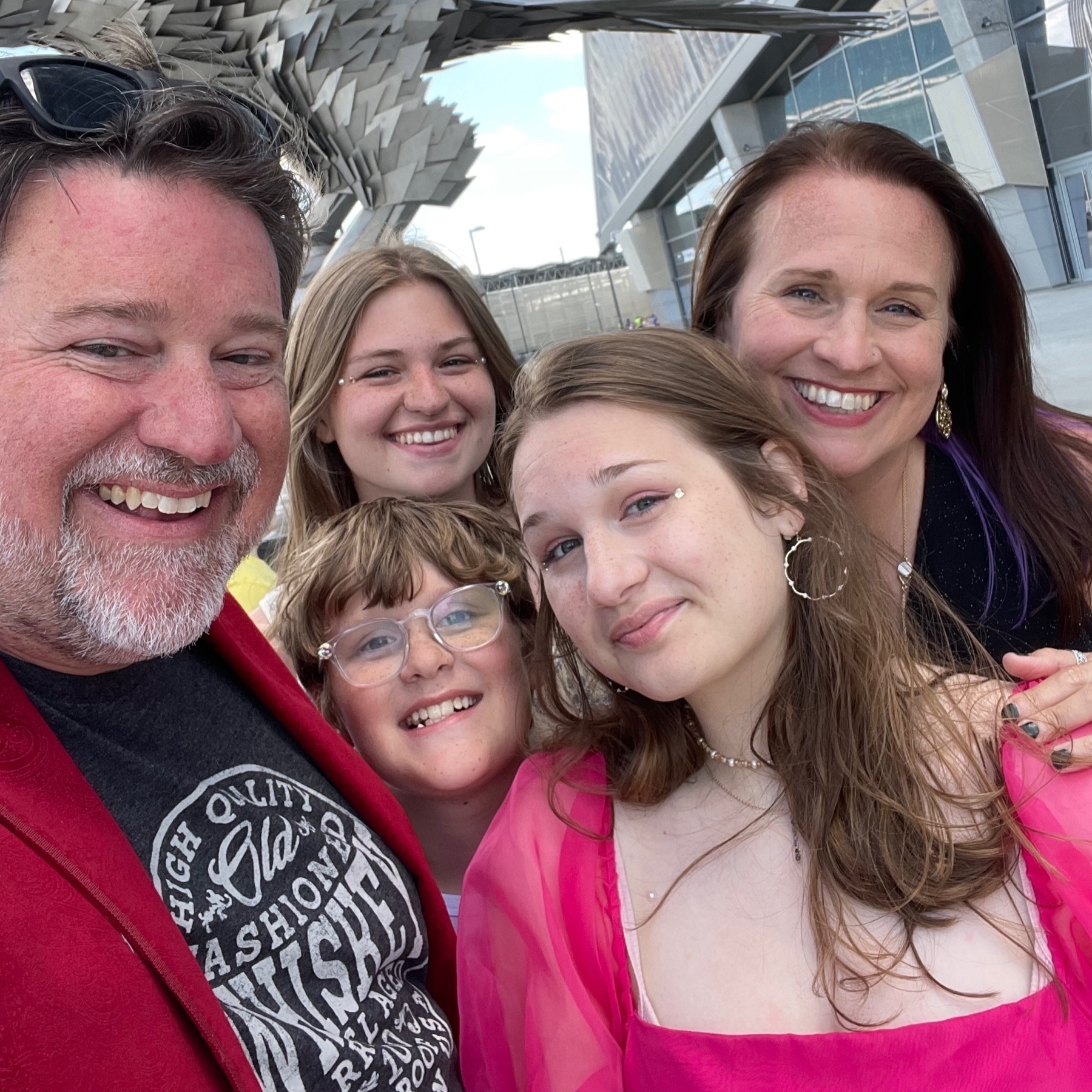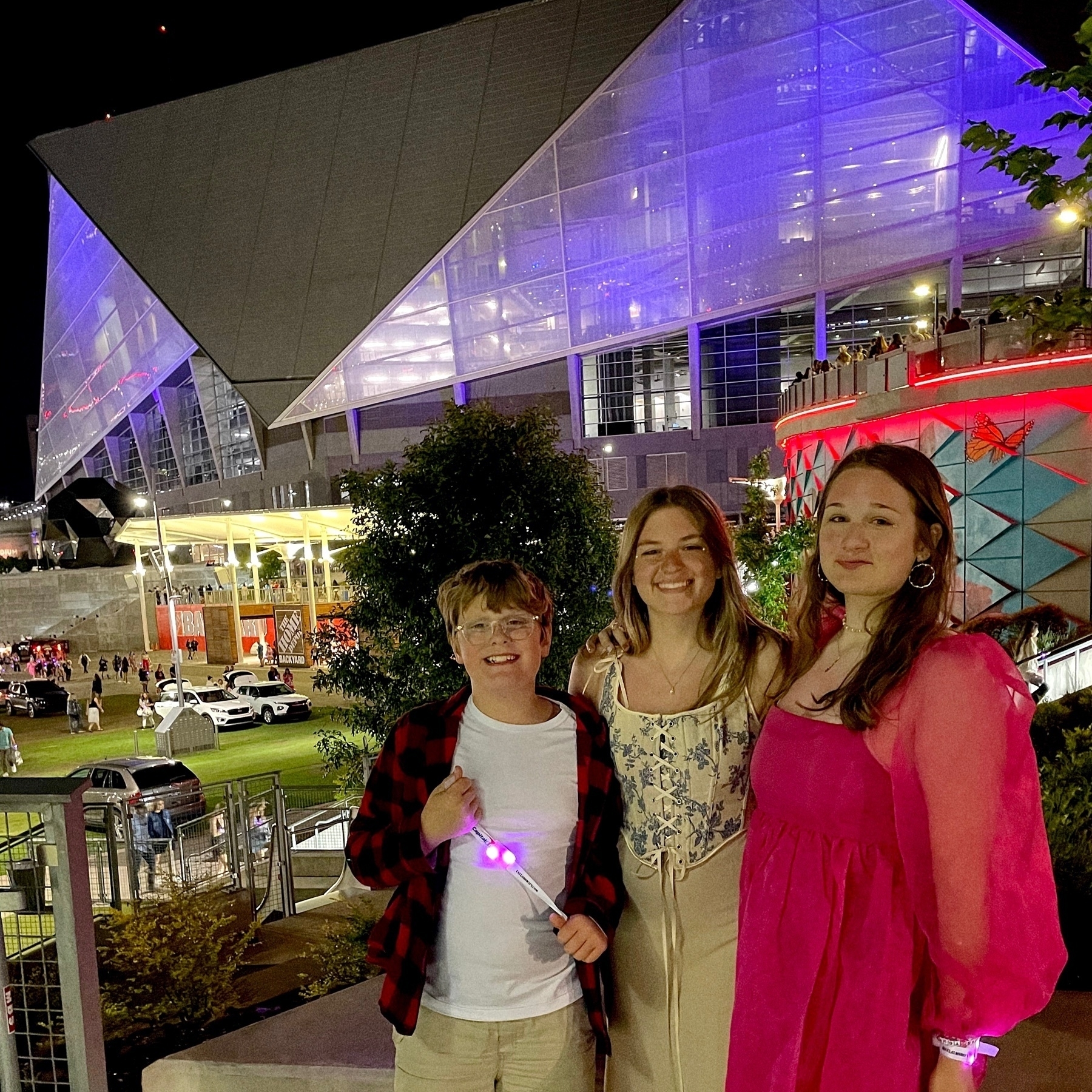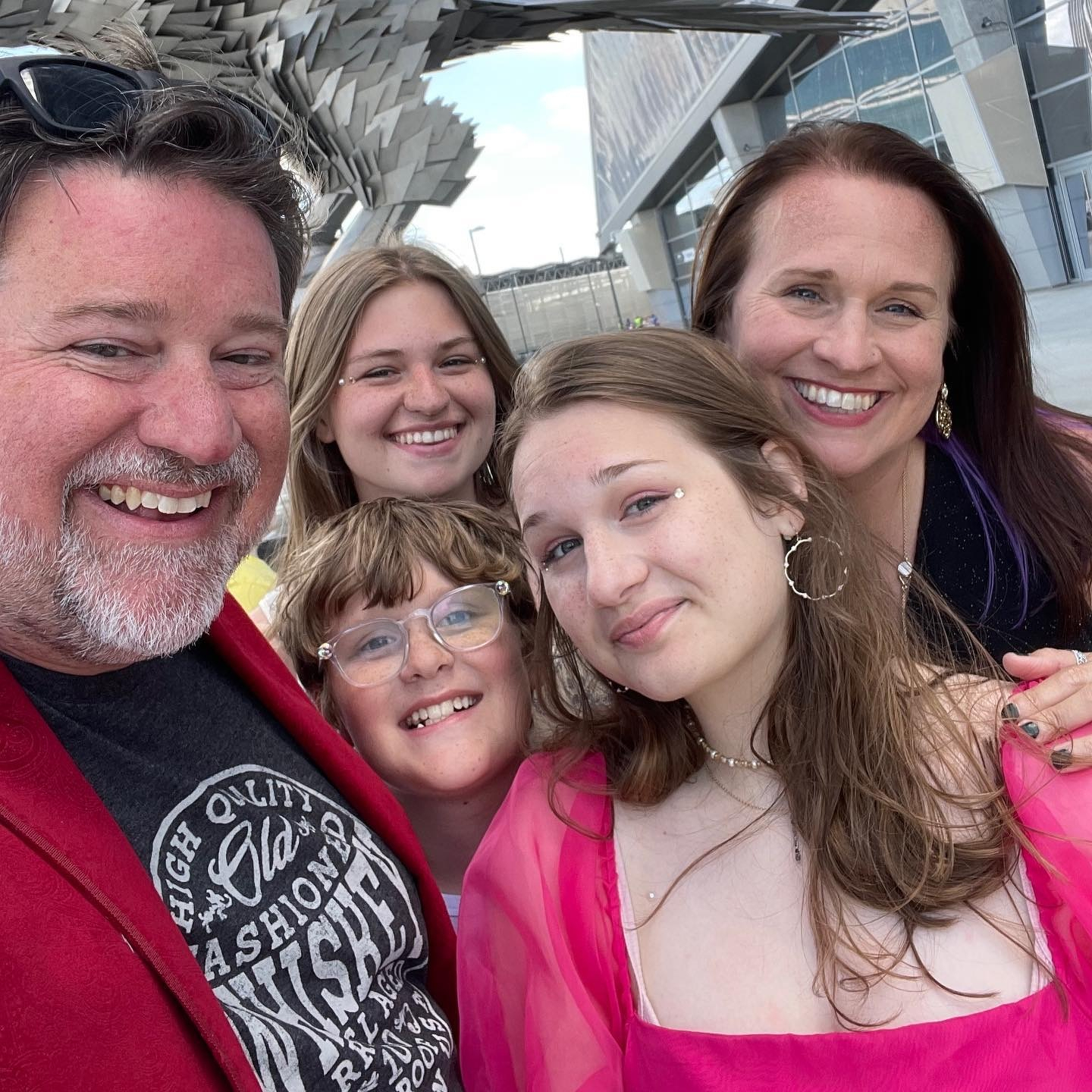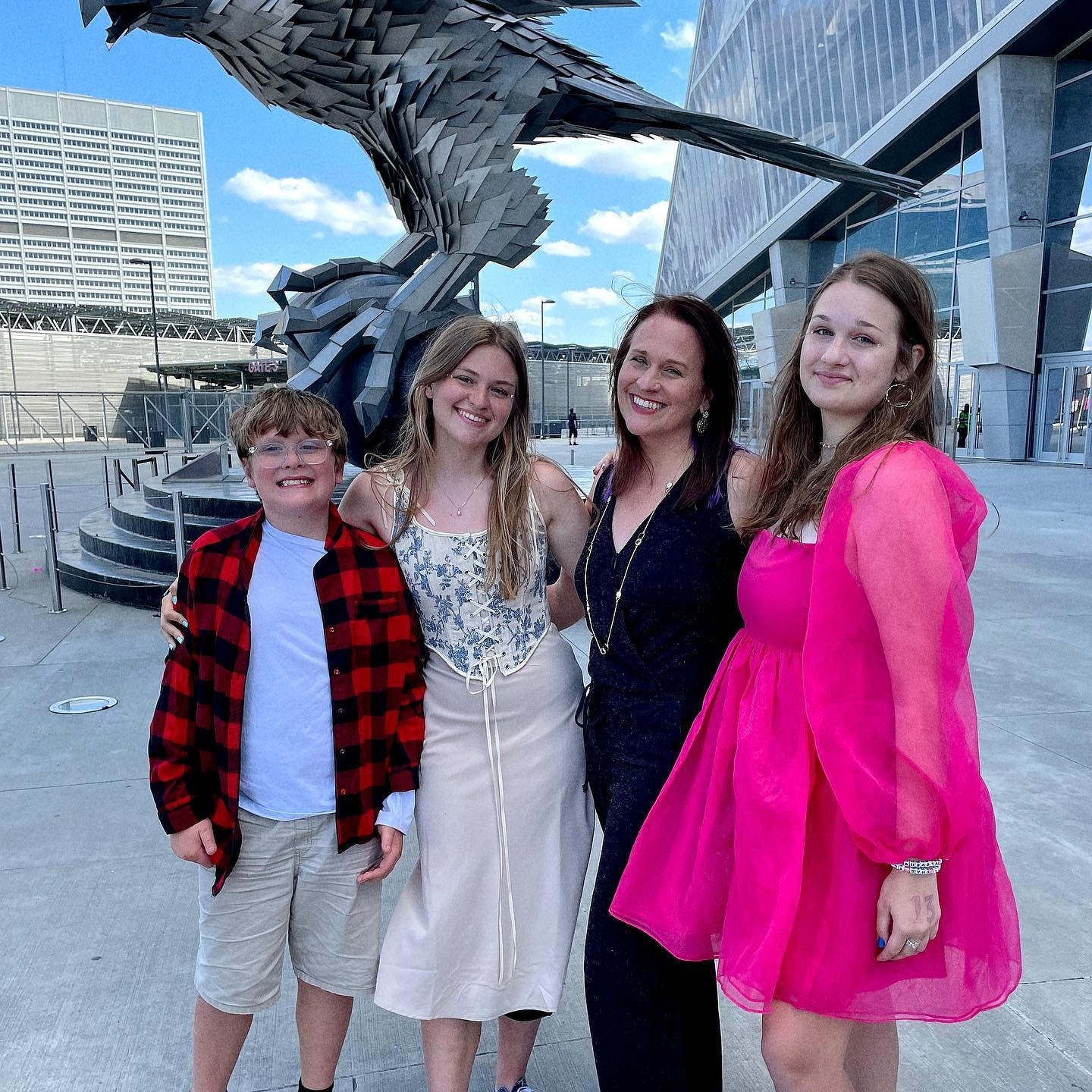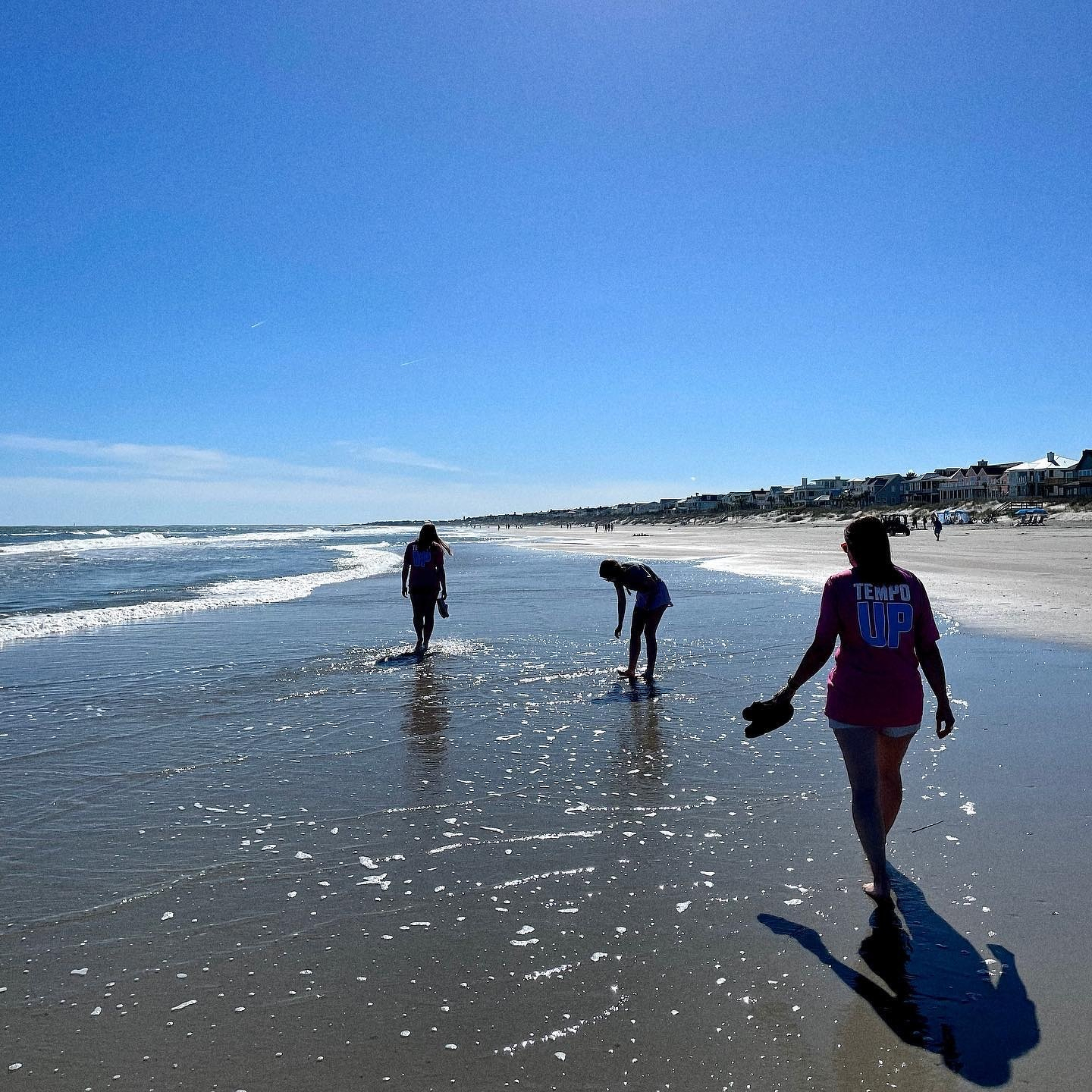
📷 March Photo Challenge #29. Slice. Or rather, slices of bacon. Love having breakfast for dinner. Columbia, SC.
📷 March Photo Challenge #28. Prompt. My car is prompting me to get gas. Columbia, SC.
Senior night didnât exactly go as planned, but it was fun to see Norah in uniform and on the field one last time.
📷 March Photo Challenge #27. Support. Tonight was Norah’s Senior Night. Lots of people have supported her during her lacrosse career, especially during this season which ended early with an ACL tear. Chapin, SC.
📷 March Photo Challenge #26. Instrument. My wife’s ukulele. Columbia, SC.
I wrote up my quick first thoughts about Adobe Firefly, but my 11-year old has also started playing with it. Here’s his bronze steam-powered robot walking in a cityscape.
3/26/23 • 4 min read
I recently got access to Adobe Firefly, a beta generative AI system. It’s not a surprise at all that Adobe is experimenting with generative creative tools. Adobe is clearly looking at ways AI can integrate with the tools that they already offer. Thankfully, unlike an earlier wave of visual AI tools, Adobe has trained their AI model on properly-licensed images. Generated images are restricted to non-commercial use and a label is added to exported images, but you shouldn’t see a Getty Images watermark anywhere.
I’ve been following news about generative AI, but I haven’t really experimented with any of the other tools. It’s been more of an abstract curiosity. Now after playing with Adobe Firefly, I can see some of the practical implications of generative AI tools and started to think about how those features could fit into a design workflow. Also, as a Ph.D. student trying to settle on a dissertation topic, I see lots of research questions when I look at generative AI and Adobe Firefly.
Right now, the service has two features: Text to Image and Text Effects. I’ve spent a little bit of time experimenting with Adobe Firefly and wanted to share some initial impressions.
The text to image feature is straightforward. Type in a prompt and Firefly generates four images. On the right, there is a palette with options that lets you refine your request. You can choose the aspect ratio, content type, style, lighting and composition. Below is a screenshot of the interface and a few examples of what it can do:
Prompt: green metal fish-shaped spaceship on an alien planet
Styles: art, concept art, dramatic light, flat colors
Prompt: green hot rod racing through the desert
Styles: photo, muted, blurry background, backlighting, science fiction
Prompt: loose sketch of a white male with a green sweater and a stubble beard typing on a laptop in a coffee shop
Styles: art
A couple of quick reflections on using Firefly’s Text to Image feature:
Text Effects lets you specify and apply an AI-generated effect to some text. Firefly has a few sample effects that give you a good idea of what the feature can do. You can choose from 12 different fonts.
Prompt: Green fluffy clouds, tight fit, transparent background
Prompt: Circuit boards, tight fit, grey background
Prompt: Flowers and Rocks, loose fit, white background
A couple of notes:
Adobe Firefly is definitely a work in progress – it is a beta – but there are more features in development. The Adobe Firefly site lists one feature as coming soon, Recolor Vectors. I’m not sure how that will differ from the Recolor Artwork feature in Adobe Illustrator, but I’m looking forward to trying it out. Several other features are teased as “In exploration” and some of them look interesting. No idea how close to release these are — for all I know, they are ideas on a white board — but “text to vector” and “extend background” could be fun to play with. I’ll likely write additional posts as new features are introduced.
Bob Wertz is a creative director, type designer, Ph.D. student and researcher living in Columbia, South Carolina.
📷 March Photo Challenge #25. Spice. Random assortment of seasonings. Columbia, SC.
📷 March Photo Challenge #24. Court. Basketball practice facility at the University of South Carolina. Go Gamecocks. Columbia, SC.
📷 March Photo Challenge #23. Chance. Flipped a coin. Heads. Columbia, SC.
📷 March Photo Challenge #22. Insect. Listening to U2’s new version of The Fly. Columbia, SC.
📷 March Photo Challenge #21. Tiny. 1950s Hit subminiature camera. Columbia, SC.
📷 March Photo Challenge #20. Houseplant. Up close and personal with the plant in our office. Columbia, SC.
📷 March Photo Challenge #19. Analog. Weber Kettle thermometer. Columbia, SC.
Date night.
📷 March Photo Challenge #18. Portico. Not a grand entrance, but it’s home. Columbia, SC.
📷 March Photo Challenge #17. Early. Meeting a friend this morning at Curiousity Coffee. I’m early. Columbia, SC.
Horseshoe.
📷 March Photo Challenge #16. Road. Crossing a street by campus. Columbia, SC.
Restoration.
📷 March Photo Challenge #15. Patience. Waiting for my food at a busy restaurant. Columbia, SC.
📷 March Photo Challenge #14. Horizon. View from my office on the 7th floor, overcast. Columbia, SC.
📷 March Photo Challenge #13. Connection. Monitor Cables. Columbia, SC.
📷 March Photo Challenge #12. Shiny. “Holographic” fish stickers from Sticker Mule. Columbia, SC.
3/11/23 • 2 min read
When I first moved my blogging over to Micro.Blog, I struggled with the perceived rigidity of the navigation. It took me a little time to refine it, but I eventually figured it out. I’ve had a couple of people ask about my solution, so I figured I’d share a quick summary of how I set it up my navigation.
It shouldn’t matter what theme you are using, but for my site, I use the Pure plug in, which is a good foundation to build from. By default, the template presents a home page that includes all of your posts. Instead, I wanted to have different links in my navigation for my longer “blog” posts and my shorter “tweet-like” status posts.
It’s actually pretty easy to do, but it takes a few steps.
Create the categories you want. I created two categories: Quick Updates and Long Posts. You can create as many categories or group them differently, but this worked for me.
Set up filters. Filters will automatically apply categories based on different parameters. Click the “Edit Filters” button beneath the list of categories. I set up two filters. One that sorted untitled posts into my “Quick Thoughts” category and a second that grouped together all of my long posts with titles. This way, my posts are automatically grouped into one of the two categories. In the screenshot below, I used the “Post Length” setting.

Determine the URL for each category. Each category in Micro.Blog has a URL, typically formatted as http://DOMAIN-NAME/categories/CATEGORY-NAME. Find the URLs for each of the categories you want in the navigation.
Create a new page. Name the page and then paste the category URL into the content box. Make sure “Include this page in your blog navigation” is checked. Repeat for all of your categories. You’ll then have a navigation item for each of your categories.
This technique works really well when paired with the Custom Home Page plug in. You can see the result in the navigation on my site. I know that I could do this by building a custom template. At some point, maybe I will. But right now, I’d like to keep it as simple as I can, and this works really well for me.
Bob Wertz is a creative director, type designer, Ph.D. student and researcher living in Columbia, South Carolina.
📷 March Photo Challenge #11. Gimcrack. My home office knick knack shelf needs dusting. (I had to look up “Gimcrack,” so hopefully I got it right.) Columbia, SC.
📷 March Photo Challenge #10. Ritual. I love that my favorite local coffee shop gives me a teapot and mug when I order hot tea. Gets me in the right frame of mind for writing. Loveland Coffee. Irmo, SC.
📷 March Photo Challenge #9: Together. Our son’s lacrosse practice means we get to walk together. Crooked Creek Park. Chapin, SC.
Library.
📷 March Photo Challenge #8. Walk. Lunchtime stroll at the SC Statehouse. Columbia, SC.