Quick Tip: InDesign out of order
This post was originally posted on March 16, 2016 on Sketchbook B. It’s reposted here as part of a project to move some of my favorite writing to my new site.
NOTE: While this page may have useful insights, be aware that it was published more than 10 years ago and may not be relevant for current software versions.
I wanted to create a PDF of some pages in an InDesign document, but I needed them in a different order in the exported PDF — page three followed by page two. I know, weird. So I was going to make the PDF and then rearrange the pages in Acrobat.
But as I was exporting the PDF, I wondered what would happen if I typed exactly what I wanted in the page range field. I typed “3,2” and hit the export button expecting an error message…
Magically, my PDF outputted correctly with page three first, followed by page two. Mind. Blown.
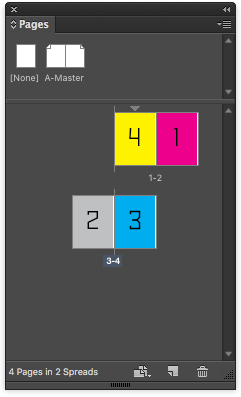
To export these in order, type “2-4, 1” in the page range field and the exported PDF will be in the correct reading order.
Turns out the range field has other tricks, too. I tried “3,2,4,3,2” expecting it to give me an error message. Nope. The resulting PDF had all five pages, in that order… including the multiple pages.
The most practical use for this little trick is when you’ve set up a brochure with the back cover and front cover on the same spread and want to export the pages in the order a viewer will see them. Typically page 4 is first, followed by 1-3. So type “2-4, 1” in the page range field and the PDF will export in the correct reading order.
It’s a nice touch. And I had no idea the feature was there.