Reshape a path quickly in Illustrator
This post was originally posted on February 26, 2014 on Sketchbook B. It’s reposted here as part of a project to move some of my favorite writing to my new site.
NOTE: While this page may have useful insights, be aware that it was published more than 10 years ago and may not be relevant for current software versions.
Here is my first Wednesday Quick Tip for Adobe Illustrator. Using the pencil tool, you can quickly reshape any path. Select the object that you want to edit. Then using the pencil tool, draw a new shape for the path. You MUST start drawing on (or very close to) the original path AND finish on the path.
Below is an example. I took a normal square and using the pencil tool, reshaped it into some half-blob thing.
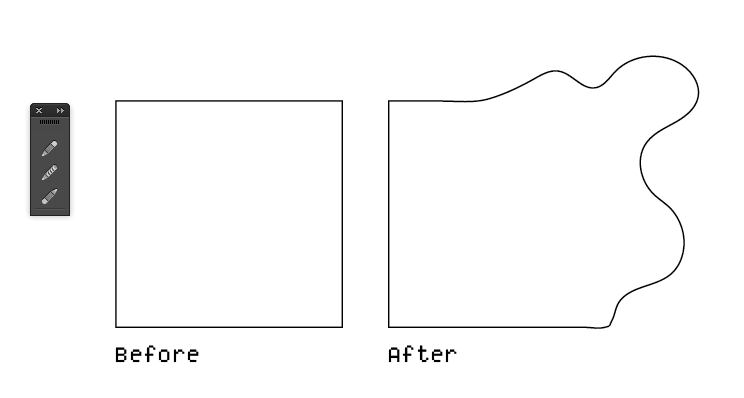
Using the pencil tool, reshape an existing path.
If you are having issues with this tip, make sure that your path was selected before you started to redraw the path and make sure that you start and finish redrawing on or very close to the path.
While the example is somewhat extreme, it’s a very handy tip for polishing shapes or cleaning up rough edges.